Network Report
Last updated: 26 October 2026
How to measure the venue's internet connection from inside the Ingester, and what to do with the result.
What it is for
When uploads are slow or keep failing, the question is almost always the same: is it the venue's connection, or something else? The Network Report answers it with numbers. It measures the route from the Ingester PC to the upload storage and saves everything in a text file that you can send to support and to the venue's internet provider.
Run one when:
- uploads are much slower than the venue connection should allow;
- uploads keep getting stuck or ending in error;
- support or the Control Room asks you for one;
- you arrive at a new venue and want to know what its connection can do.
The report only measures. It never changes any setting.
Running a report
- Open SETTINGS.
- In the Support group, click Network Report.
- Wait about 6 minutes. A window shows which step is running and a progress bar.

The report goes through six steps:
| Step | What it measures |
|---|---|
| 1 | Reading the public IP and the Cloudflare data centre the venue connection reaches. |
| 2 | Latency and packet loss to the upload storage, over about two minutes. |
| 3 | The route to the upload storage, and the packet loss at each step along it. |
| 4 | Upload speed to Cloudflare over one connection. |
| 5 | Download speed from Cloudflare over one connection. |
| 6 | Latency and route to a few other destinations, for comparison. |
Click Cancel to stop early. What was measured so far is still saved, and the summary says the report was cancelled.
Uploads wait while it runs
Uploads that have not started yet wait until the report ends, so that they do not disturb its measurements. An upload already running carries on, and encode requests go on as usual. The report window says so:
Uploads not yet started wait until the report ends; an upload already running carries on.
Meanwhile the Queued header of the job grid says how many jobs are waiting:

Uploads start again by themselves as soon as the report finishes or is cancelled.
Six minutes without new uploads matters during an event. If you can, run the report before the competition starts or during a break.
The summary
When the report finishes, a summary appears:
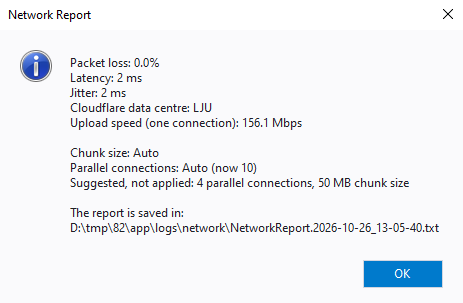
| Line | What it means |
|---|---|
| Packet loss | The share of test messages to the upload storage that never came back. Anything above 0 % slows uploads down; a few percent is a problem worth raising with the internet provider. |
| Latency | How long a message takes to reach the upload storage and come back, on average. |
| Jitter | How much that time varies. A high value means an unsteady connection. |
| Cloudflare data centre | The data centre the venue connection reaches, by its airport code — for example FRA for Frankfurt. One far from the venue suggests the provider routes traffic a long way round. |
| Upload speed (one connection) | How fast a single connection uploads. The Ingester uploads over several connections at once, so its total speed is usually higher. |
| Chunk size, Parallel connections | What the Ingester is set to now, as Settings shows them — for example Auto (now 10). |
| Suggested, not applied | A number of parallel connections and a chunk size suited to what was measured. |
| (last line) | Where the report file was saved. |
After you close the summary, Windows Explorer opens with the report file selected.
If a speed test had to be cut short — the connection dropped, say — the summary says when and why next to the speed. A test cut short within its first 5 seconds gives no speed at all, and then there are no suggested values either. If some steps failed, the summary starts by saying how many; the file says why.
The suggested values
The suggestion aims at about 100 Mbps in total: the fewest parallel connections that reach it at the measured one-connection speed (at most 10 on a connection without packet loss, where more connections would not help), and the chunk size the Ingester would use for a typical 1.5 GB contest video at that many connections.
The suggestions are not applied. Leave File chunk size and Parallel connections on Auto — the Ingester learns from its own uploads — unless support asks you to set the suggested values. See the settings reference.
The report file
Every report is saved in the network folder next to the other logs:
C:\FairReplay\Ingester\logs\network\NetworkReport.<date>_<time>.txt
for example NetworkReport.2026-10-26_09-15-02.txt. Click Open logs on the main
window to get there.
It is a plain text file. Besides the summary, it holds the Ingester's version and upload settings, the uploads running at the time, the public IP address, every step's detailed measurements — including each router along the route and its packet loss — and the latency and route to the other destinations.
Send it to support with the other log files. If it shows packet loss, send it to the venue's internet provider too: the route section shows them where along the way the messages get lost.