Re-running and cancelling jobs
Last updated: 26 October 2026
How to retry a job that went wrong, and how to remove one you do not want.
All of these actions are on the right-click menu of the job grid. Right-click the row you are interested in and the menu opens with the entries that apply to that job, each one naming the file so you can see at a glance which job you are about to act on.
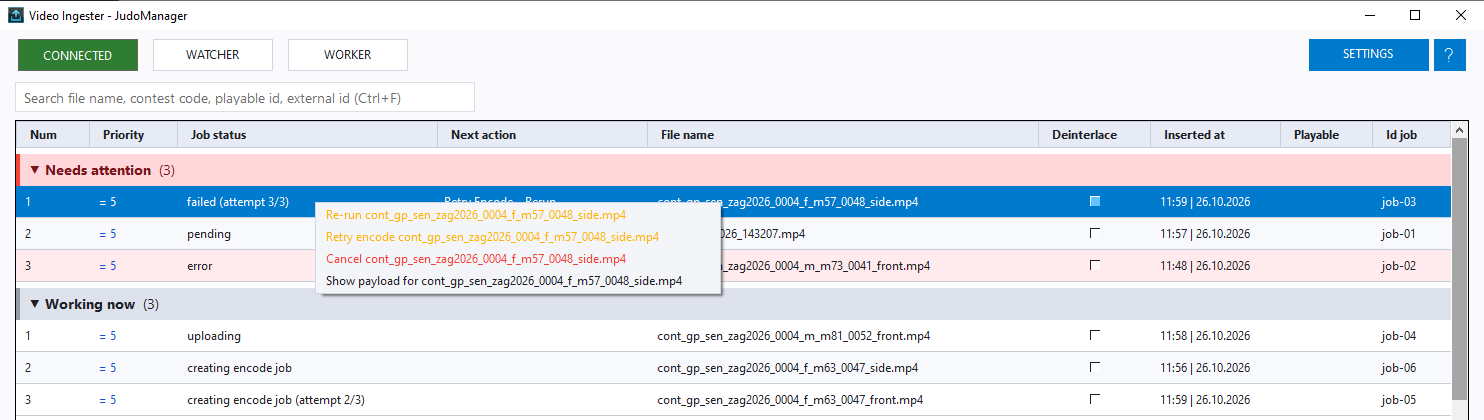
You can select several rows first (Ctrl-click or Shift-click) and act on all of them at once.
For a job in Needs attention, the fix you most likely want is also a link in the grid's Next action column — see The Next action column.
The menu only lists what is possible for the selected job, so it is shorter or longer depending on the job's status. If an entry you expected is missing, the job's status does not allow that action — the rules are given under each heading below.
Re-running a job
Right-click the job and choose Re-run "file name", or click Rerun in its Next action column.
You are asked to confirm. The job is then put back into the queue and the upload starts again from the beginning, as a new encoding on the platform.
Use this when a job ended in error or failed — a dropped connection, a temporary backend problem, or a chunk size that was too large for the link. Fixing the cause first and then re-running is usually all that is needed.
A job can only be re-run when its status is error, failed, done or cancelled. In other words: re-run applies to jobs that have stopped. A job that is pending, queued or in progress does not need re-running, so the option is hidden.
When several jobs are selected, the menu says Re-run n selected jobs and you are asked to confirm.
Retrying the encode request
A failed job has already been uploaded; only the request asking the platform to encode it went wrong — three times in a row, as the Ingester retries a failed encode request twice by itself first (see When an encode request fails).
For such a job there is a lighter fix than re-running: right-click it and choose Retry encode "file name", or click Retry Encode in its Next action column. The encode request is sent again straight away, with a fresh set of three attempts, and the file is not uploaded again. There is no confirmation.
Use it once the cause is fixed — for example once the platform is reachable again after an outage. If retrying does not help, Re-run the job to upload it again from the start.
Retry encode also appears on a job stuck at creating encode job. You rarely need it there: a job left in that state for 15 minutes is sent back to Waiting for encode automatically.
Cancelling a job
Right-click the job and choose Cancel "file name".
You are asked to confirm. The job is then marked cancelled and moves to the Cancelled group.
Cancelling works on every job that is not already done or cancelled, including one that is currently uploading — the transfer is stopped. This was added so that a job stuck at 0 % on a bad connection, or one stuck at creating encode job, can be cleared without restarting the program.
Cancelling does not delete the video file from disk. It only removes the job. Whether the file is picked up again on the next folder scan depends on the Ignore Canceled setting.
Cancelling and then re-running
A common repair sequence:
- Cancel the stuck job.
- Change whatever caused the problem — for example lower the File chunk size or the Parallel connections in Settings.
- Open the Cancelled group (click its header), find the job — the search box helps — right-click it and choose Re-run.