Using the Video Ingester
Last updated: 26 October 2026
The main window
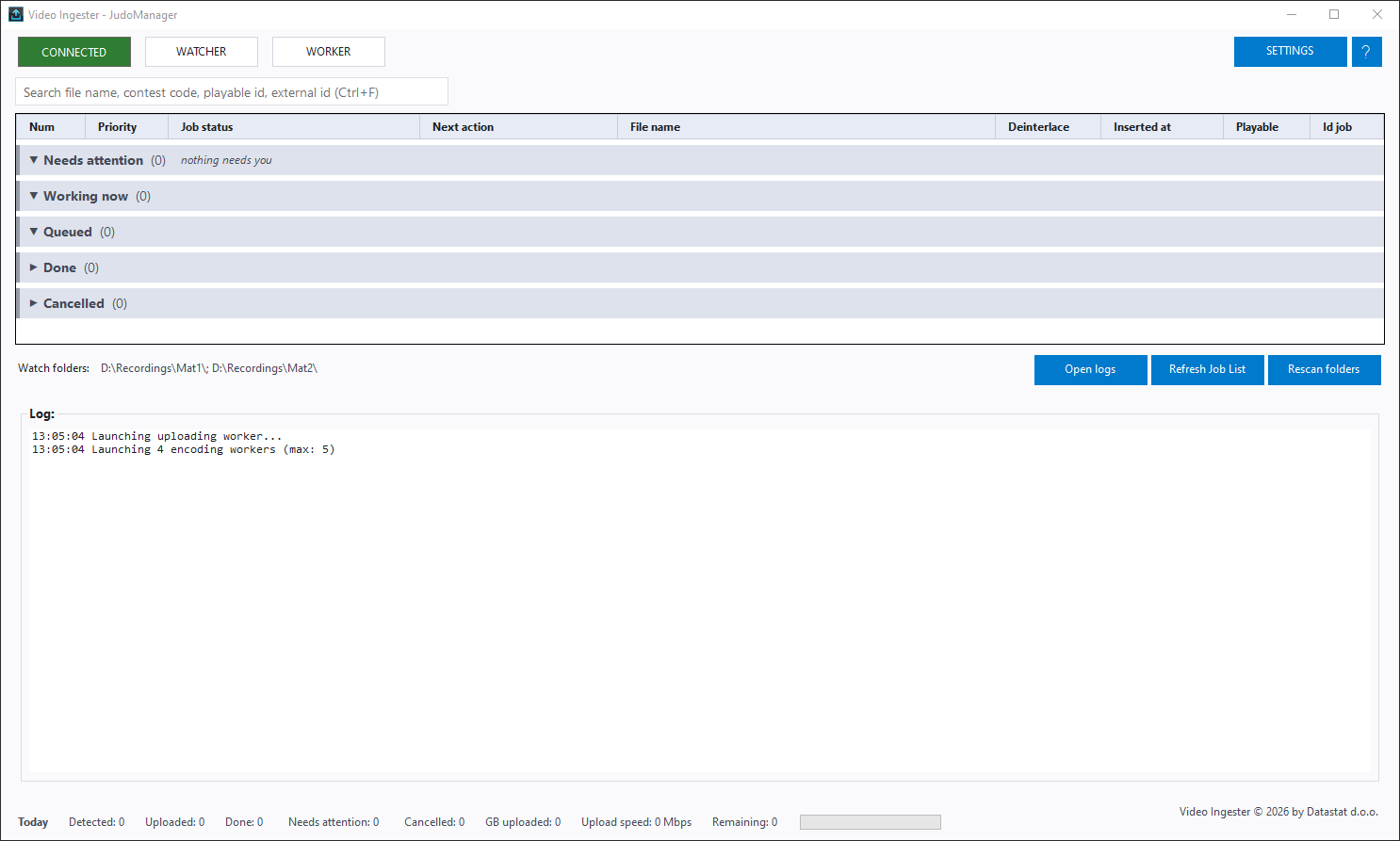
| Area | What it is |
|---|---|
| Connected (top-left) | Internet connection status. Green Connected means the Ingester can reach the network. It turns red and warns you when the connection drops. |
| WATCHER / WORKER | Switch the two roles on and off. Blue means on. |
| SETTINGS | Opens the Settings dialog. |
| ? | Opens this documentation in your browser. |
| Search box (above the grid) | Finds jobs by file name, contest code, playable id or external id. See Finding a job. |
| Job grid | Every job, listed in five groups by what, if anything, you need to do about it. |
| Watch folders | The folders currently being monitored. |
| Open logs | Opens the log folder in Windows Explorer. |
| Refresh Job List | Refreshes the grid immediately. F5 does the same. |
| Rescan folders | Scans the watch folders now instead of waiting for the automatic scan. |
| Log | What the Ingester has been doing, most recent at the bottom. |
| Today strip (bottom) | What happened today, at a glance. See The Today strip. |
Earlier versions had a Show all jobs button that revealed finished and cancelled jobs. It is gone: finished and cancelled jobs now have their own groups in the grid — Done and Cancelled — which you open with a click.
The job groups
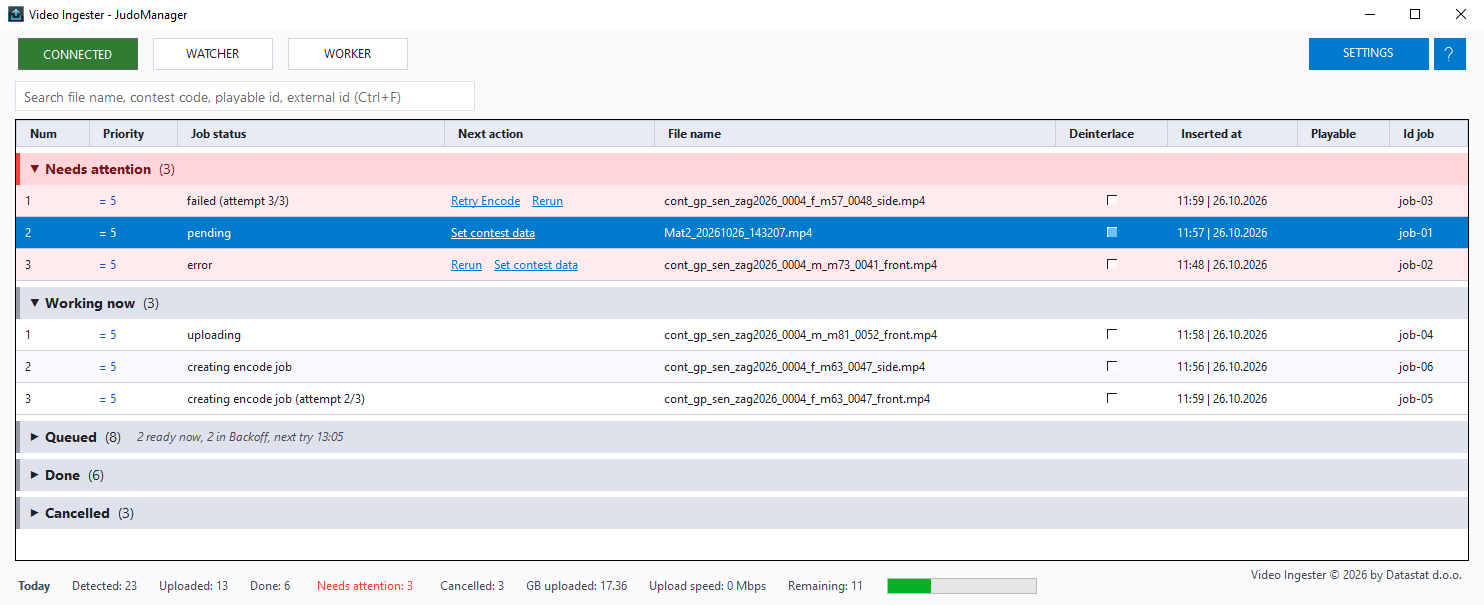
The grid lists every job under one of five group headers, always in this order:
| Group | What is in it | What you do |
|---|---|---|
| Needs attention | Jobs that cannot move on without you: pending jobs waiting for contest data, uploads that ended in error, and jobs whose encode request failed. | Fix them — the Next action column says how. |
| Working now | The job being uploaded, and the jobs whose encode request is being sent right now. | Nothing. |
| Queued | Jobs that will run without you: new jobs waiting to upload, and uploaded jobs Waiting for encode. They are listed in the order they will be picked up. | Nothing — or change their priority. |
| Done | Jobs whose encode request was accepted by the platform. | Nothing. |
| Cancelled | Jobs you cancelled. | Re-run one if you cancelled it by mistake. |
Each header shows how many jobs the group holds. Needs attention turns red, and its rows are tinted red, as soon as it holds a job; when it is empty its header says nothing needs you.
Folding and opening a group. Click a group header to fold it (hide its jobs) or open it again. With a header selected, Space folds or opens it, ← folds it and → opens it. Done and Cancelled start folded so the list stays short during an event. The Ingester remembers which groups you folded, and how wide you made the columns, the next time it starts.
Older finished jobs. Done and Cancelled can grow to thousands of jobs over an event, so they show the newest 20 first. If there are more, the last row of the group reads Show 20 older — click it to load the next 20.
Sorting. Click a column header to sort the jobs within each group by that column; click again to reverse the order, and a third time to go back to the group's normal order. The groups themselves always stay in the same order.
The Queued header
When uploaded jobs are waiting for encode, the Queued header summarises them, for example 2 ready now, 1 in Backoff, next try 14:35:
- ready now — jobs whose encode request will be sent as soon as an encoding worker is free;
- in Backoff — jobs whose last encode request failed and that wait a few minutes before the Ingester tries again by itself (see When an encode request fails);
- next try — the time the first of those will be tried again.
While a Network Report is running, new uploads wait for it to finish, and the header starts with how many jobs are waiting for it, for example 4 waiting for the Network Report.
The job grid columns
| Column | Meaning |
|---|---|
| Num | Row number, counted from 1 within each group. |
| Priority | Job priority 1–10 with an arrow and colour. See Job priority. |
| Job status | Current status. While uploading, the percentage of the file sent so far is shown here. |
| Next action | On Needs attention rows only: one or two links saying what to do next — see below. |
| File name | The video file this job is for. |
| Deinterlace | Whether the encoder will deinterlace this video. |
| Inserted at | When the job was created. |
| Playable | The identifier of the video record on the platform, once it exists. |
| Id job | The internal job identifier. Quote it when reporting a problem. |
The Next action column
Every job in Needs attention shows what you can do about it, most likely fix first. Click the link to do it:
| Job status | Next action |
|---|---|
| pending | Set contest data — opens the Contest Data form. |
| error (the upload failed) | Rerun — uploads the file again from the start. Set contest data — correct the contest data, then upload again. |
| failed (the encode request failed) | Retry Encode — asks the platform again to encode the file already uploaded. Rerun — uploads the file again from the start. |
The same actions are on the job's right-click menu. See Re-running and cancelling jobs.
Finding a job
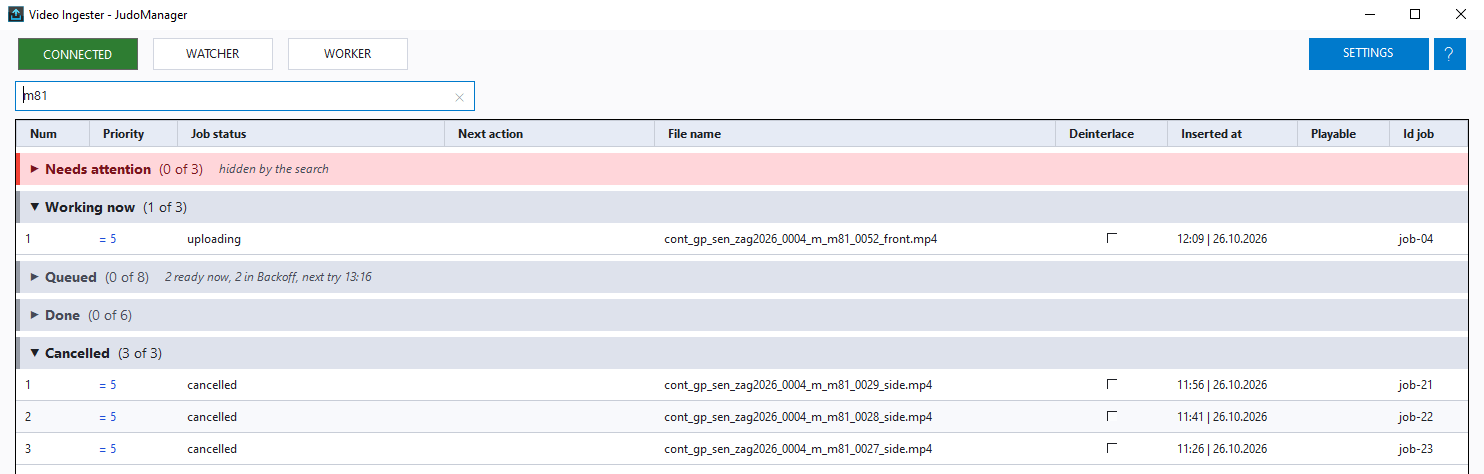
Type into the search box above the grid — or press Ctrl+F to jump there. The grid shows only the jobs whose file name, contest code, playable id or external id contains what you typed, ignoring upper and lower case.
While you search:
- groups with matching jobs open, and groups without any fold;
- each header shows how many of its jobs match, for example (1 of 3);
- if Needs attention holds jobs but none of them match, its header says hidden by the search, so you do not forget them;
- Done and Cancelled are searched in full — every job the Ingester has finished or cancelled, not only the 20 shown.
Press Esc, or click the ✕ at the end of the search box, to clear the search. The groups go back to how you had them folded before.
The Today strip

The strip at the bottom of the window refreshes every 30 seconds and answers "how is today going?":
| Item | Meaning |
|---|---|
| Detected | Jobs created today. |
| Uploaded | Jobs whose upload finished today. |
| Done | Jobs that reached done today. |
| Needs attention | Jobs waiting for you right now, whatever day they arrived. Red while it is above 0 — click it to jump to the Needs attention group. |
| Cancelled | Jobs cancelled today. |
| GB uploaded | The size of the files uploaded today. |
| Upload speed | The average speed of the recent uploads, in Mbps. |
| Remaining | Jobs still to go right now — those in Working now and Queued. |
| Progress bar | How many of today's jobs (not counting cancelled ones) are done. |
"Today" is the calendar day on the Ingester PC's clock; the counts start again from zero at midnight.
The ENCODING STALLED banner

If jobs are waiting for encode and no encode request has succeeded for 10 minutes, a red banner appears across the top of the window:
ENCODING STALLED: jobs are waiting in uploaded and no encode request has succeeded for 10 minutes. Check the workers and the backend.
It disappears by itself as soon as an encode request succeeds again. See Troubleshooting.
Working modes
The Ingester can be used in two ways. They are not settings you switch between — they simply describe whether a human has to supply the contest data or not.
Automatic mode
This is how the Ingester is used during a normal event, together with the Video CutterV2.
The Video CutterV2 cuts each contest into its own file, writes it into a watch folder, and
writes a small companion file next to it with the same name plus .json. That companion
file carries everything the Ingester needs: the contest code, the camera name, the
partner, the backend system, whether to keep the original, and whether the recording was
progressive or interlaced.
The Ingester then:
- Notices the file.
- Reads the companion
.jsonfile. - Waits if the cutter is not finished — while the companion file says
FinishedCutting: false, the video is deliberately skipped and the log says so. - Creates the job directly as new and starts uploading.
No human input is needed at any point.
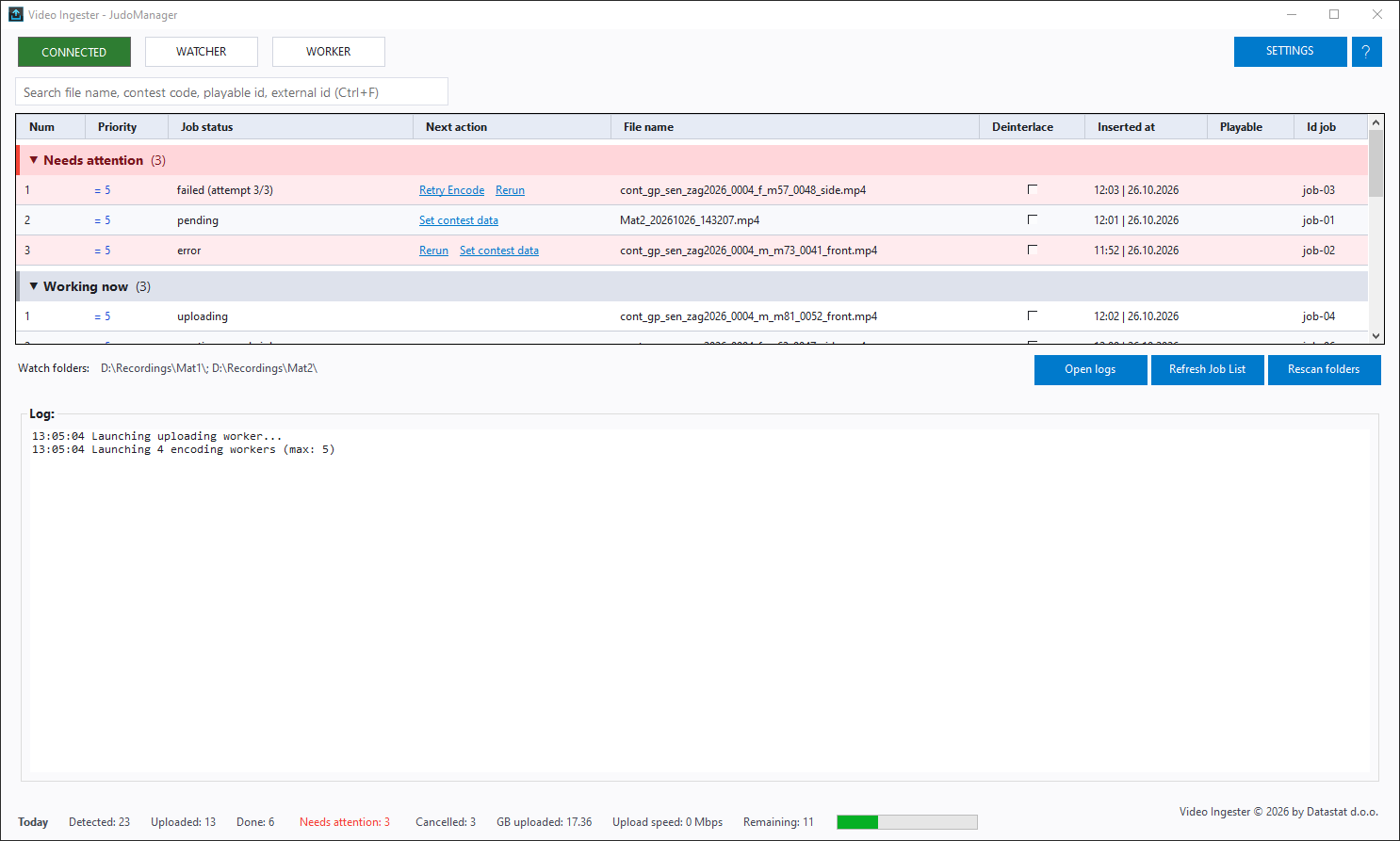
If a video appears without a companion .json file, or the companion file has no
contest code, the job is created as pending and waits in Needs attention for you
to fill in the details by hand — see Entering contest data for a pending
job below.
Manual mode
Use this when you need to upload a file that the Video CutterV2 did not prepare — a recording from a memory card, a re-export, or a fight that was cut by hand.
Get the file into the Ingester. Either copy it into a watch folder, or drag and drop it onto the job grid.
A new job appears in Needs attention with status pending. Now fill in its contest data, as described in the next section.

Entering contest data for a pending job
A pending job is one the Ingester cannot upload yet, because it does not know which
contest the video belongs to. It sits in Needs attention and nothing happens to it
until you tell it. This is true whichever way the job got there — a file you dropped in
yourself, or a file that arrived without a usable companion .json file.
1. Open the Contest Data form. Any of these opens it — use whichever you prefer:
- Click Set contest data in the job's Next action column.
- Click the job's row to select it; a Contest Data button appears above the grid. Click it.
- Right-click the row and choose Set Contest Data from the menu that pops up.
The button and the menu entry appear only when exactly one row is selected and that row's status is pending or error. A job that is queued, uploading or already uploaded cannot have its contest data changed: by then the video's record on the platform already carries the data it was sent with.
2. Fill in the form.

| Field | What to enter |
|---|---|
| Contest Code | The code identifying the fight this video belongs to. It must match an existing contest in the backend you are configured for. |
| Camera name | Which angle this recording is: Front, Side, Side Left, Side Right, Rear, PGM Clean, PGM Dirty, Crane. This is how several angles of the same fight are told apart. |
| Partner | Only shown when the Backend System is JudoManager. The federation or organisation that owns the event. Mandatory for JudoManager, not used for Judobase. |
| Keep Original | When ticked, the original file is kept in cloud storage alongside the encoded version. |
| Deinterlace | Overrides the deinterlace decision for this one job. |
The form remembers the partner used for the previous job and preselects it, so you do not have to choose it again for every file at the same event.
Double-click the file name at the top of the form to copy it to the clipboard — useful when you need to look the fight up somewhere else.
3. Save. The job status changes from pending to new, it moves to Queued, and the upload starts as soon as a worker is free.
If the contest code does not exist in the backend, the upload fails with a clear message — see Troubleshooting.
Correcting the contest data of a failed upload
Set contest data also works on a job whose upload ended in error — typically because the contest code was wrong. Open the form the same way, correct the data and click Save. The job goes back to new and is uploaded again from the start with the corrected data.
Inspecting a job
Right-click a job and choose Show payload for … to see the full JSON payload stored with that job: the file path, contest code, camera name, deinterlace flag, overlay URL and so on.
This is the fastest way to answer "what exactly is this job going to send?" and is worth including when reporting a problem.
Pausing the uploads
Switch WORKER off. Jobs keep being discovered and queued but nothing is uploaded. Switch it back on to resume.
This is the correct way to free the venue connection temporarily — for a live stream, a medal ceremony broadcast, or a network problem. Nothing is lost; the queue simply grows.
While the worker is off and jobs are waiting, the WORKER button blinks amber and the taskbar icon flashes, so an accidentally paused Ingester does not go unnoticed.
Closing the Ingester
If jobs are still processing when you close the Ingester, it asks first:
Some jobs are processing. Uploads in progress go back to new and upload again from the start on the next run; encode requests in progress go back to uploaded. Close anyway?
- Click OK to close. Nothing is lost: the next time the Ingester starts, the interrupted uploads start again from the beginning, and the interrupted encode requests are sent again.
- Click Cancel to keep the Ingester running.
Because an interrupted upload starts over, closing in the middle of a large upload throws away the time already spent on it. If you can, wait for the current uploads to finish first.